copilot_here: November 2025 Updates - ARM64, .NET 10, Airlock & More

On this page12 sections ▾
- What's New in November 2025
- 1. Native ARM64 Support: Apple Silicon
- 2. .NET 10 SDK
- 3. Playwright Image
- 4. Airlock Network Isolation
- 5. Actual Path Mapping: Know Where You Are
- 6. Flexible Directory Mounts: Access What You Need
- 7. Smart Window Titles: Cleaner Terminal Tabs
- 8. Default Image Configuration: Variants & Pinning
- 9. Auto-Update Checks: Stay Current
- Version Information
- Try It Out
November has been a busy month for copilot_here. What started as a path mapping fix turned into a much bigger release than I planned.
The release adds native ARM64 images, .NET 10, PowerShell support inside the container, and Airlock network controls.
If you're new to copilot_here, check out my previous posts about running GitHub Copilot CLI in a secure, sandboxed Docker environment.
#What's New in November 2025
- Native ARM64 Support - fast, native performance on Mac and ARM devices
- .NET 10 SDK - .NET SDK image variants
- Playwright Image - Browser automation without the .NET overhead
- Airlock Network Isolation - Control exactly what the AI can access on the network
- Actual Path Mapping - Container paths match your host paths
- Flexible Directory Mounts - Mount additional directories with granular control
- Smart Window Titles - Auto-updating titles with mode indicators
- Default Image Config - Lock your team to a specific image version
- Auto-Update Checks - Get notified when new features land
#1. Native ARM64 Support: Apple Silicon
This is the one I've been wanting to ship for a while. Until now, Mac users on Apple Silicon were running the AMD64 image via Rosetta emulation. It worked, but it wasn't great.
As of version 2025-11-19, we now publish multi-arch images for both linux/amd64 and linux/arm64.
You get faster startup and response times, lower memory and CPU usage on Mac, and the ability to run copilot_here on other ARM Linux devices. Docker pulls the correct image for your architecture automatically - no config needed.
#2. .NET 10 SDK
#.NET 10
For .NET developers wanting the latest features, there are now specific image variants for each version:
dotnet-8: Previous LTSdotnet-9: Standard Term Supportdotnet-10: Latest LTS
The main dotnet tag still includes all three SDKs, but if you want a lighter image or need to pin a specific version, you can now do that.
# Use the .NET 10 specific image
copilot_here --set-image dotnet-10#3. Playwright Image
For projects that use Node but don't need .NET, there's a new image that extends the base with Playwright capabilities.
Tag: playwright
Includes:
- Playwright (latest)
- Chromium browser with dependencies
- All base image features
Usage:
copilot_here -pw
# or
copilot_here --playwright#4. Airlock Network Isolation
Airlock adds network controls to the existing filesystem sandbox. It uses a custom Rust-based HTTPS proxy with enforce and monitor modes.
#Why Airlock?
I wanted to control outbound requests as well as filesystem access. In enforce mode, Airlock limits requests to the configured allowlist; monitor mode records requests without blocking them.
#How It Works
Airlock uses Docker Compose to spin up two containers:
- A Rust HTTPS proxy that intercepts all traffic and enforces rules
- The Copilot CLI container, isolated on an internal network that can only reach the proxy
The app container has no direct internet access. All traffic goes through the proxy, which generates a CA certificate on startup (trusted by the app container), performs HTTPS interception to inspect request paths, allows or blocks requests based on your config, and optionally logs all traffic for auditing.
Network Topology View
The app container connects only to the internal network. The proxy connects to that network and to Docker's bridge network, which provides outbound access. In enforce mode, the proxy checks requests against the allowlist before forwarding them.
#Quick Start
# Enable Airlock for the current project (you'll choose enforce or monitor mode)
copilot_here --enable-airlock

# Or enable globally
copilot_here --enable-global-airlock
When you first enable Airlock, you'll be prompted to choose a mode:
- Enforce (
e): Blocks requests not matching the allowlist - Monitor (
m): Allows all requests but logs them for review
#Configuration
Airlock uses JSON configuration files:
Global: ~/.config/copilot_here/network.json
Local: .copilot_here/network.json
{
  "enabled": true,
  "inherit_default_rules": true,
  "mode": "enforce",
  "enable_logging": false,
  "allowed_rules": [
    {
      "host": "api.github.com",
      "allowed_paths": ["/user", "/graphql"]
    },
    {
      "host": "api.individual.githubcopilot.com",
      "allowed_paths": ["/models", "/mcp/readonly", "/chat/completions"]
    }
  ]
}
The default rules cover the GitHub and Copilot API endpoints you need. Setting inherit_default_rules: true means your config picks up updates automatically when new endpoints are required.
#Management Commands
# View current configuration
copilot_here --show-airlock-rules

# Edit local rules (opens in $EDITOR)
copilot_here --edit-airlock-rules

# Edit global rules
copilot_here --edit-global-airlock-rules

# Disable Airlock
copilot_here --disable-airlock#Traffic Logging
When enable_logging is true (or automatically in monitor mode), all requests are logged to .copilot_here/logs/traffic.jsonl:
{"action":"ALLOW","host":"api.github.com","path":"/user","method":"GET","mode":"enforce","reason":"Path Match"}
{"action":"BLOCK","host":"evil.com","path":"/exfil","method":"POST","mode":"enforce","reason":"Host Not Allowed"}
Useful if you want to audit what the AI is actually doing on the network.
#Security Model
The app container has no direct route to the internet in this configuration. The Rust proxy inspects HTTPS requests and supports path-level rules, so an enforce-mode allowlist can permit particular APIs instead of an entire host. Plain HTTP can also be blocked.
#5. Actual Path Mapping: Know Where You Are
#The multi-instance confusion problem
With several terminal windows open, I need to distinguish projects such as /Users/me/projects/api, /Users/me/projects/frontend, and /Users/me/investigations/bug-123.
Previously, copilot_here mapped each project to /work, so the container path did not identify the host directory.
#The fix
The container now uses your actual host path.
Before:
# In /Users/me/projects/api
copilot_here
# Container sees: /work/src/...
After:
# In /Users/me/projects/api
copilot_here
# Container sees: /Users/me/projects/api/src/...
Paths now match between host and container, so copy-pasting just works.
#6. Flexible Directory Mounts: Access What You Need
Sometimes you need more than just the current directory - maybe architecture docs in ~/docs, or you want to save logs to ~/investigations.
There's now a three-tier mounting system:
#1. CLI Flags (Quick & Temporary)
# Read-only mount (default)
copilot_here --mount ~/investigations

# Read-write mount
copilot_here --mount-rw ~/notes#2. Local Config (Project-Specific)
Save mounts for a specific project in .copilot_here/mounts.conf:
copilot_here --save-mount ~/investigations#3. Global Config (User-Wide)
Always have your notes available:
copilot_here --save-mount-global ~/common-notes#Security first
Mounts default to read-only. You have to explicitly request write access with --mount-rw, and the tool will warn you if you try to mount sensitive paths like / or ~/.ssh.
#7. Smart Window Titles: Cleaner Terminal Tabs
When running interactive CLI tools, your terminal tab usually shows the raw command (docker run ...). Not helpful when you have multiple tabs open.
The terminal tab now updates automatically while Copilot is running. Safe Mode shows 🤖 directory-name, YOLO Mode adds ⚡️, and Airlock Mode adds 🛡️ at the end. At a glance you can see which tab is running Copilot, which mode it's in, and whether Airlock is active. The title reverts when you exit.
#8. Default Image Configuration: Variants & Pinning
By default, copilot_here uses the latest tag. If you want a specialized variant like dotnet or need to pin a specific version for team consistency, you can now configure that globally or per-project:
# List all available image variants
copilot_here --list-images

# Use the .NET variant for this project
copilot_here --set-image dotnet

# Pin to a specific SHA (recommended for strict team consistency)
copilot_here --set-image sha256:e73a13e...

# Clear configuration to revert to default
copilot_here --clear-image
Check your current configuration:
copilot_here --show-image
# Output:
# 🖼️ Current image: sha256:e73a13e... (from local config)#9. Auto-Update Checks: Stay Current
With updates coming this frequently, it's easy to fall behind. The scripts now do a pre-run check and prompt you when a new version is available.
📢 Update available: 2025-11-20.3 → 2025-11-20.15
Would you like to update now? [y/N]:
Type y to update immediately, or press Enter to skip and carry on with your current version.
#Version Information
These changes are in version 2025-11-28.4 and later.
Run this to update:
# Linux/macOS or Windows PowerShell
copilot_here --update#Try It Out
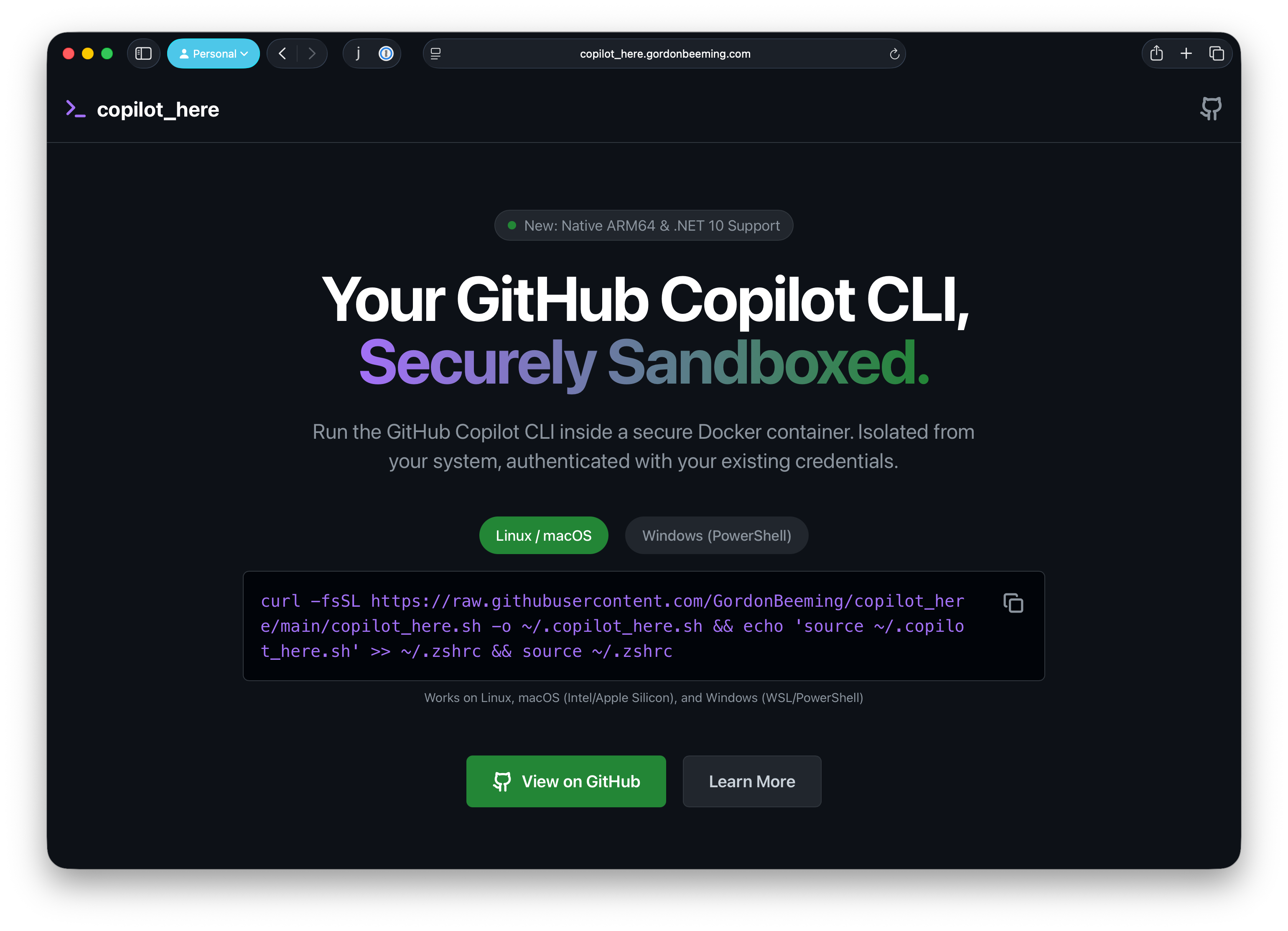
Check out the copilot_here marketing site - I put it together using copilot_yolo and the Gemini 3 Pro model (in preview) in just under 90 minutes while watching TV 😅.
Check out the project on GitHub: copilot_here