#TYMHKON: Public projects in Azure DevOps

On this page3 sections ▾
Did you know you can have public projects in Azure DevOps?
#Since When?
In April Jamie Cool announce VSTS Public Projects Limited Preview.
In August public projects moved to public preview which you can read more about on the docs site What is a public project?.
#Some Interesting Info
In September during the Azure DevOps launch it was announced that open source projects would get unlimited build minutes and up to 10 parallel hosted pipelines. Private projects moved up to 1800 free build minutes and remains with a free hosted pipeline.
To use those free build minutes your source code doesn't have to be in Azure Repos, it can reside in any publicly accessible repo like GitHub or Bitbucket. During the keynote you can see that the project demonstrated all live out on GitHub and just integrate with Azure Pipelines.
#How to enable public projects?
If you have a project that you want to enable public access for the first step is enabling Allow public projects Security policy at the organization level,
- With your Organization selected
- Click Organization settings
- Policy tab
- Change Allow public projects to On
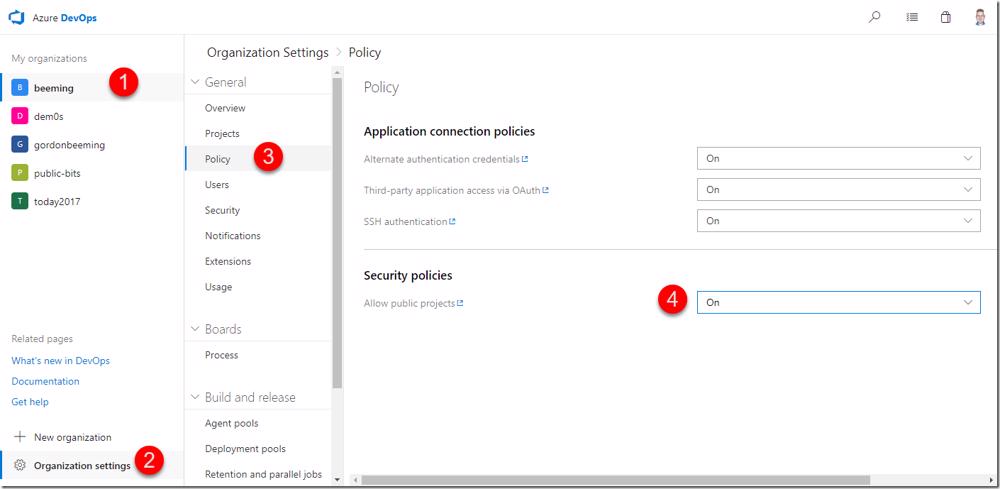
Next navigate to the project you want to enable public access for and then click on
- Project settings
- Overview
- Edit under Visibility
- Select Public and read the important notes, if happy
- Click Change

You can then also (like with private projects too)
- head over to the Services tab
- Change the Available services you want to have for the current Team Project, this change affects the whole project (private and public access)
- After a refresh you can see the change in the 'apps bar'
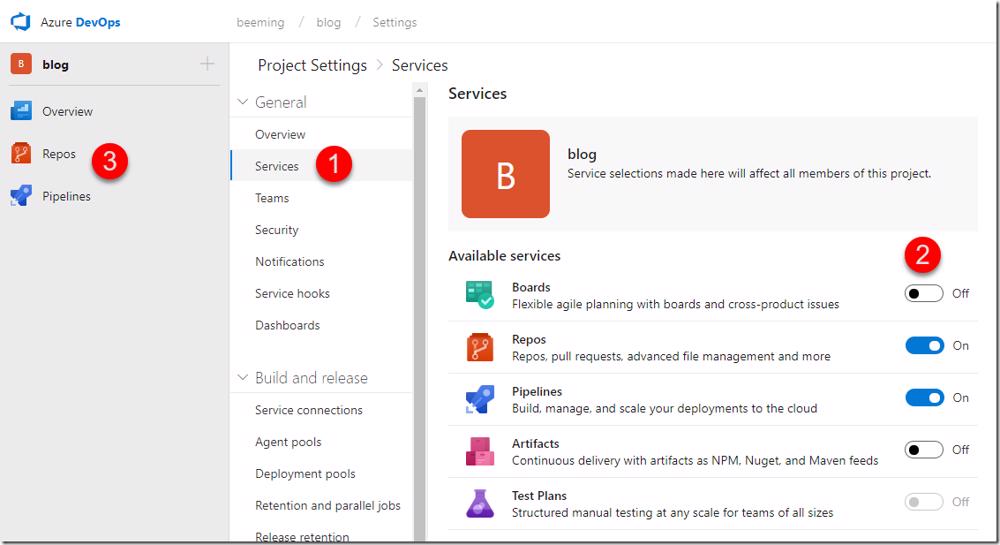
That's it, you all good to go. You can now share the url with others and they can access your project.