Changing the theme in Windows 10

In windows 10 when you go to Change the background and colors on Start

it loads up the Color and Appearance window
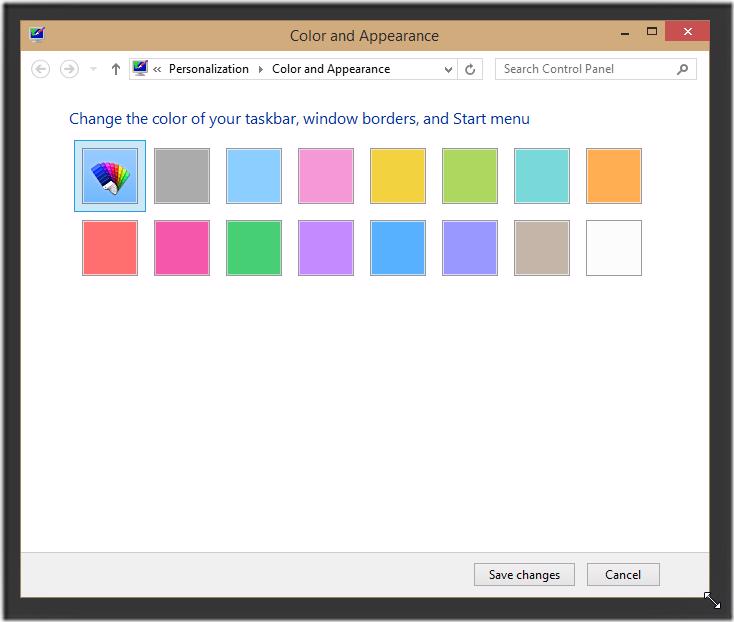
which does let you change the accent and background color for windows. So you stuck with that weird purple looking theme or I managed to get blue type color on one of my machines. After a quick Bing I found that you can just set 2 registry entries restart your pc and you now have theme color that you want 🙂.
Basically you need a registry file with the contents below (save that into a .reg file), set the hex values for your color and then run it.
[HKEY_LOCAL_MACHINE\SOFTWARE\Policies\Microsoft\Windows\Personalization]
"PersonalColors_Accent"="#00b8ff"
"PersonalColors_Background"="#000000"
You can also download this reg file from GutHub using https://github.com/Gordon-Beeming/ChangeWindowsTheme/blob/master/Downloads/set-theme-colors.reg and you can download an app that takes in the 2 hex values and then set it, you will need to run the app as administrator otherwise it will crash. https://github.com/Gordon-Beeming/ChangeWindowsTheme/blob/master/Downloads/ChangeWindowsTheme.exe
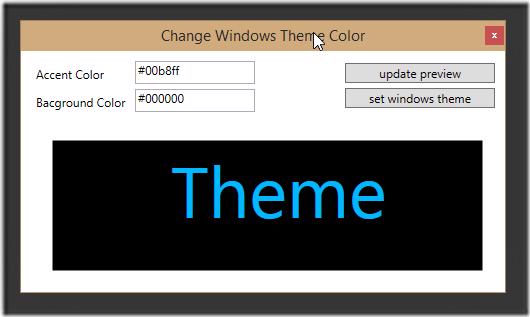
The app lets you preview the theme before setting it because you will need to restart after editing the registry to see the changes