Cleaning up the Taskbar on Windows 10

On this page3 sections ▾
The number 1 thing voted for under Taskbar currently is to hide the new Search bar and task view buttons
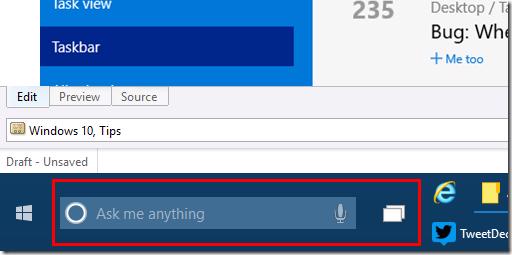
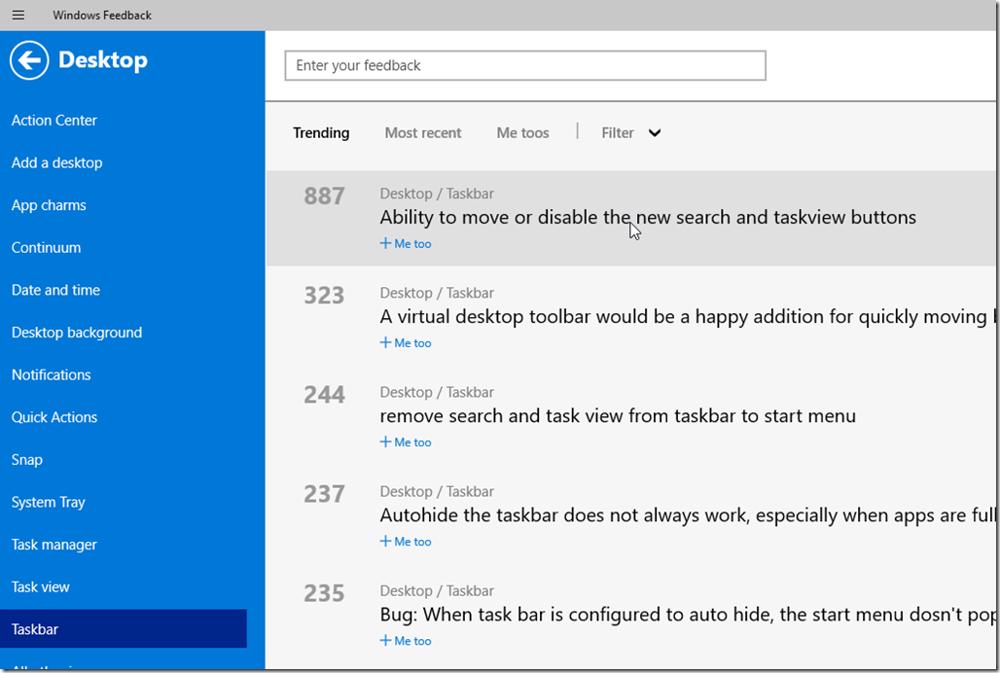
To show that Microsoft is listening below is how you can hide these.
#
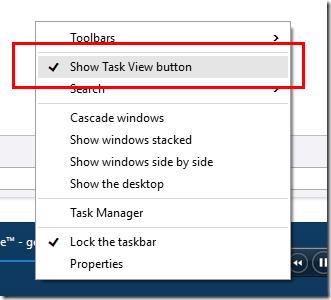
#Hide Task View button
To hide the Task View button simple right click on the Taskbar and then un tick Show Task View button.
#Hide Search Box
Hiding the search box is not much different. Right click on the taskbar and then go to search, in this case you are presented with multiple options.
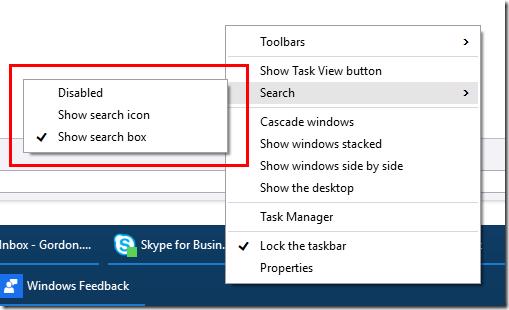
You can disable (hide) the search box
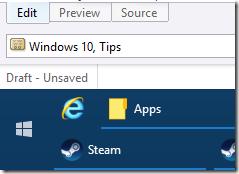
Show just a icon (like earlier builds of windows 10

or have the search box show
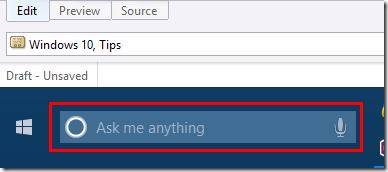
#My Preference
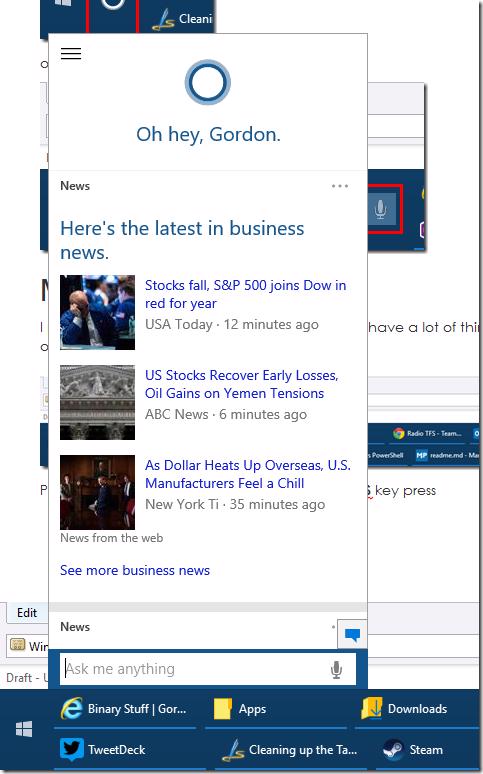
I prefer to hide everything. The reason for this is I have a lot of things open at once to the point where I on my main screen have a double taskbar and have the setting for showing items in the taskbar set to only show where the apps are open so like the space

Plus I know Cortana is there with a simple win + S key press
Enjoy!