Assign a Azure Subscription to a existing user

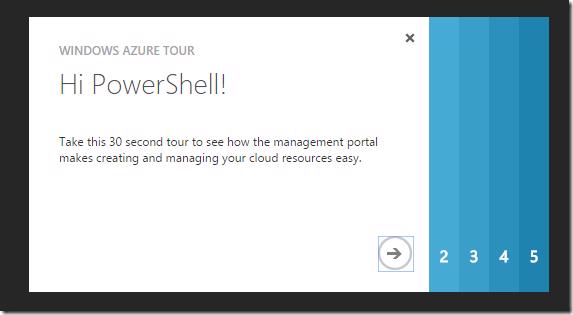
If you have logged into the Azure Management Portal and see a message like below then you need to have a azure subscription assigned to you in order to use the portal and this post is going to help you (probably your Administrator) assign a subscription to your account.
![image_thumb\[20\]_thumb](/images/fdf132718ac549daad2c3bf5bfbe2648.png)
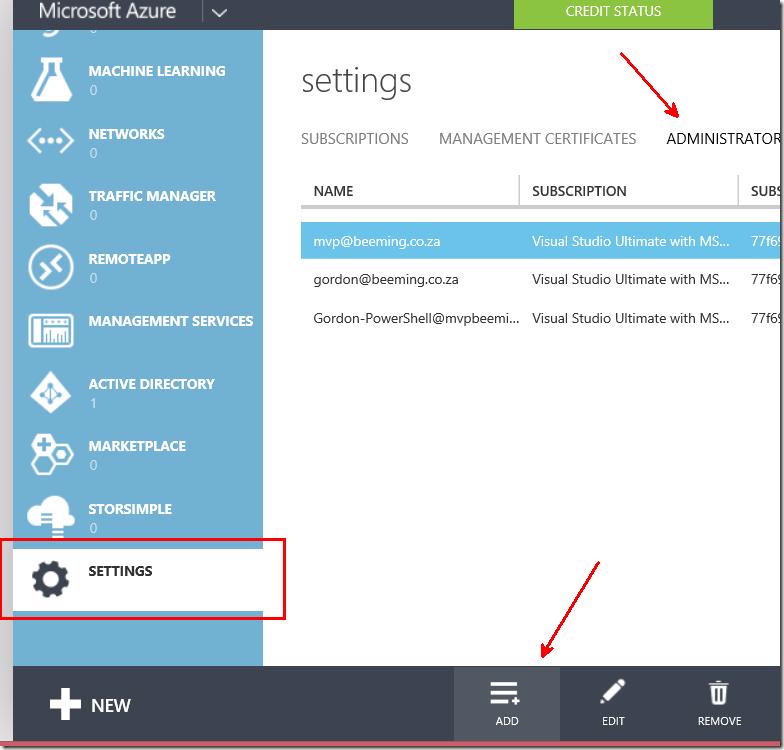
To Get started from this point you'd need to login to the Azure Management Portal as an Administrator. One of the ways to assign a user a subscription is to buy one or you can add the user as a co-administrator of an existing subscription (if they would need to admin those resources). In this post we'll show you how to add a co-administrator. Click on the Settings tab and then the Administrators tab and then click on Add.
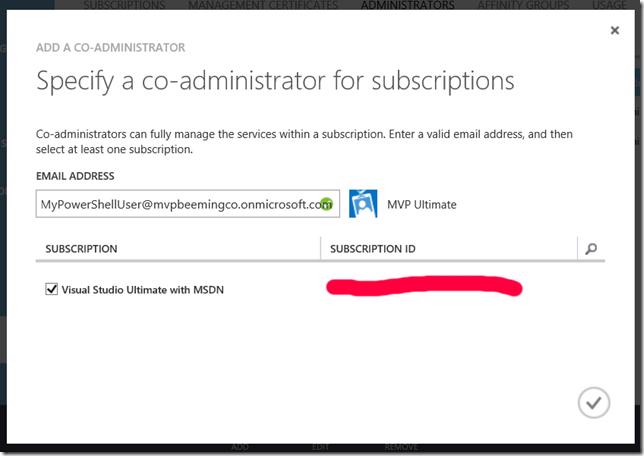
This dialog is a simple one enter the email address of the user you want to add as a co-administrator and then check the subscription you want to add them to. You will notice that it will automatically detect the AAD that the account is linked to or if it is a MSA.
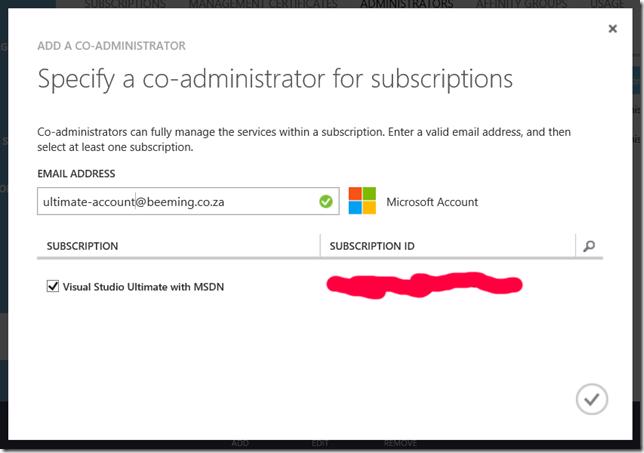
Click on the tick, you will get a progress message

shortly followed by a success message

At this point if you navigate back to the Azure Management Portal as the user you will be given access and will be shown a quick Azure Management Portal Tour.