VSTS widget for GitHub badges

When I first heard about the SDK for widgets in Visual Studio Team Services (VSTS) I wanted to make a couple of widgets, one of these was a GitHub widget that would show some info from any GitHub repo on your VSTS dashboard. This can can be helpful when you have your source open on GitHub but still work out of VSTS.
The implementation is very simple and you can see it and contribute on GitHub on one of my projects VSTS.GitHubWidget.
#Install
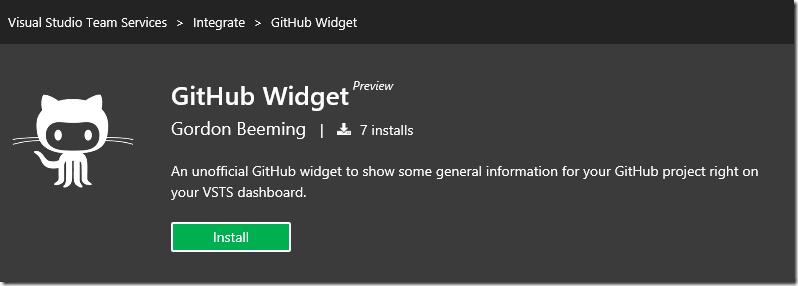
Go to the Visual Studio Marketplace and head over to the Integration section and look for GitHub Widget

You can also follow this link for GitHub Widget. Now all you need to do is hit Install
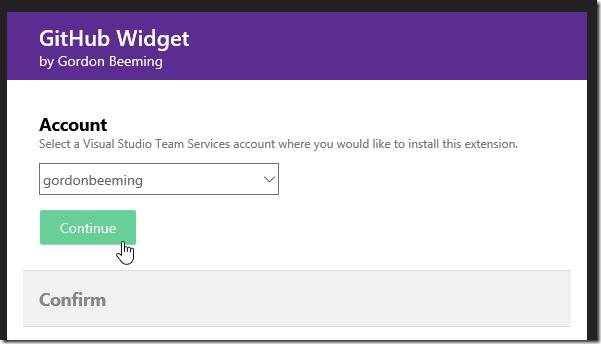
Click Continue
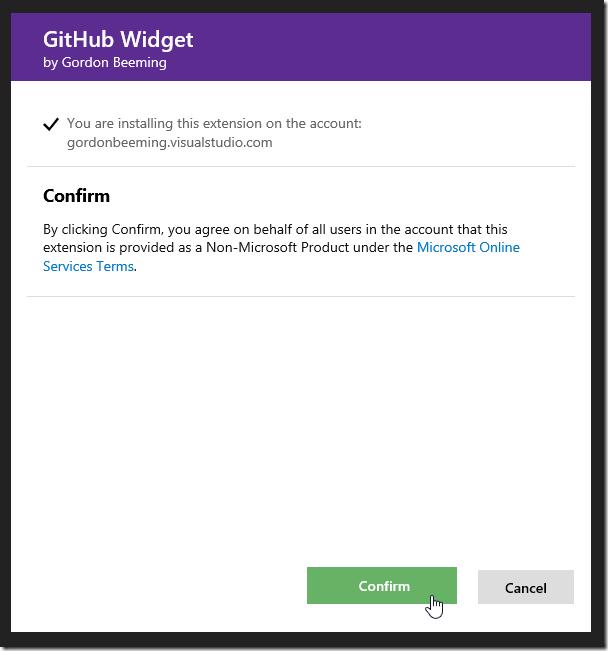
and then click on Confirm to install the extension
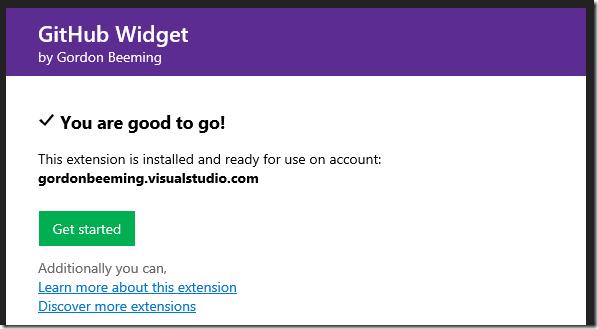
and you will now have the extension installed in the account you selected.
#Usage
On your dashboard click the add widget button

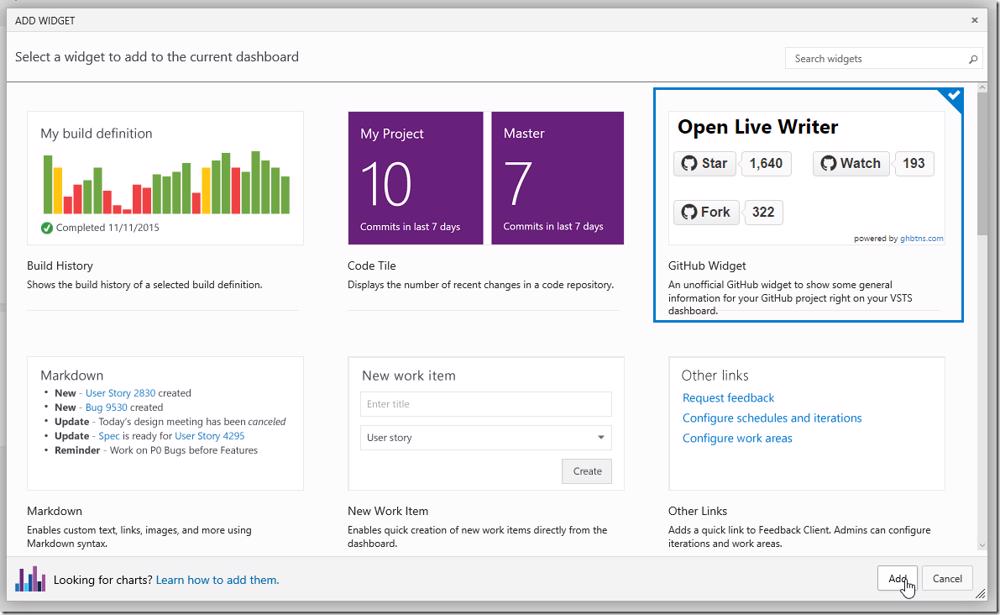
This will popup the widgets catalog and you will notice the GitHub widget in the list of widgets in the catalog, click on it and then click Add.
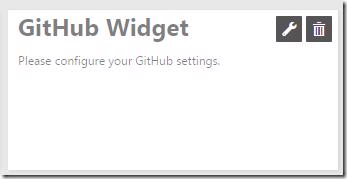
Your new widget will appear on your dashboard blank
Click on the Configure icon and the settings will fly out from the right. Enter a name for the widget as well as the username and repo that you want to get information for
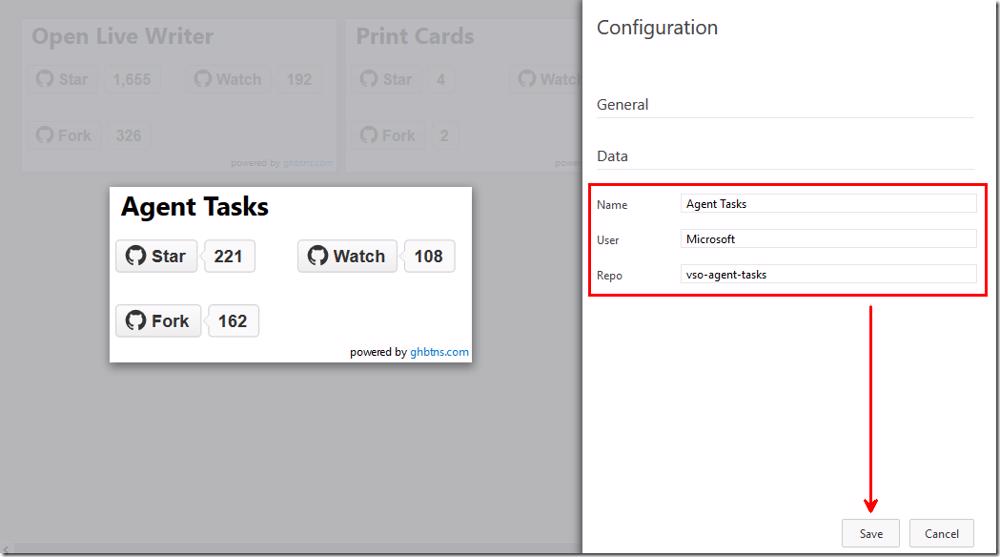
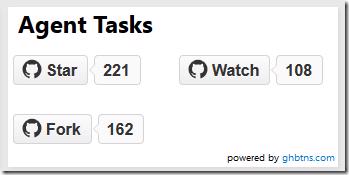
Now click Save and your widget configuration will be applied to your widget and it will show you the counts for Stars, Watches and Forks on your dashboard.
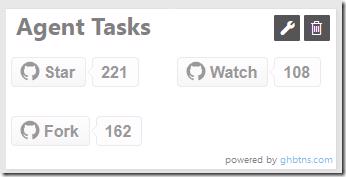
When you are finished editing your dashboard the tick icon to complete editing your dashboard
Now every time you land on your dashboard you will automatically gain insights into your GitHub projects.
Enjoy