Searching in VSTS/TFS

On this page2 sections ▾
This post is largely showing off a cool feature of chrome but the core focus is how you can be more productive with VSTS search 😁
Visual Studio Team Services let's you search across all your code and work items. What's really strange about this is how without this functionality it was harder trying to find work items and code but I used to say it would be nice if we had a better work item search and it would be nice to have a code search instead of having to pull all the code to my machine. I now find my self saying, why isn't it as easy as searching Google.
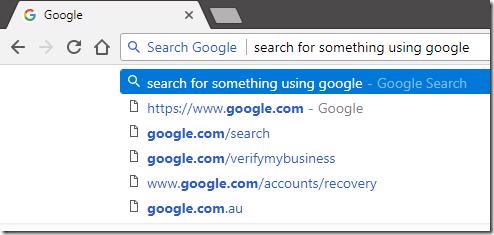
Well it is 😁, I don't often notice features like this search because I used to just type what I want in the address bar and hit enter, switching between search engines was a process of copy, navigate to other search engine and paste. One day I saw a friend of mine Rory Bolle have a search bar like the image above and my life changed as he showed me this feature 🙂. Part of getting through each day generally has a lot of how can I be more efficient with boring tasks, and although not really a task on it's own browsing to where to search is boring and something you don't have to do 🙂.
#Searching VSTS faster using chrome
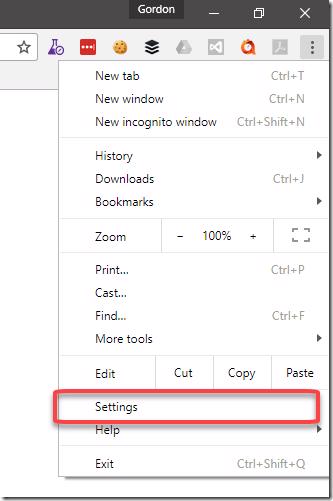
Chrome supports custom search engines and that's what functionality we going to use now. Open Chrome settings
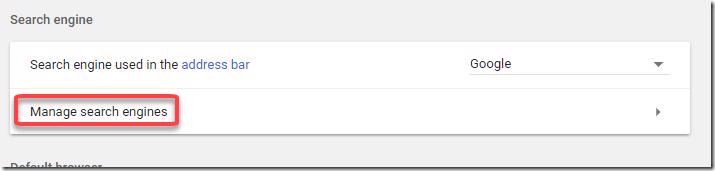
Scroll down to the Search engine section and then click on Manage search engines
under the Other search engines section click ADD
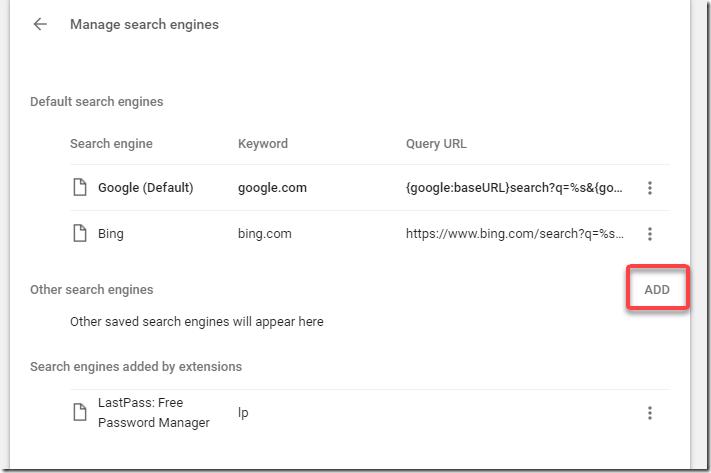
We are going to add 2 search engines here, first for code search (replace your account name in the url)
Search engine: TFS Code Search
Keyword: tfsc
Url:
-
VSTS: https://<your account name>.visualstudio.com/_search?type=Code&lp=search-account&text=%s&_a=research
-
TFS: https://<server>:<port>/tfs/<team project collection>/_search?type=Code&lp=apps-account&text=%s&_a=contents
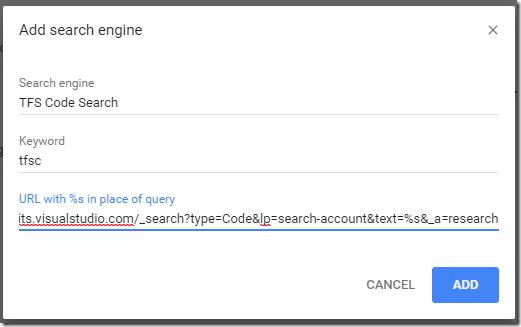
repeat that process again, this time for work item search
Search engine: TFS Work Item Search
Keyword: tfsw
Url:
-
VSTS: https://<your account name>.visualstudio.com/_search?type=Work%20item&lp=apps-account&text=%s&_a=search
-
TFS: https://<server>:<port>/tfs/<team project collection>/_search?type=Work%20item&lp=apps-account&text=%s&_a=research
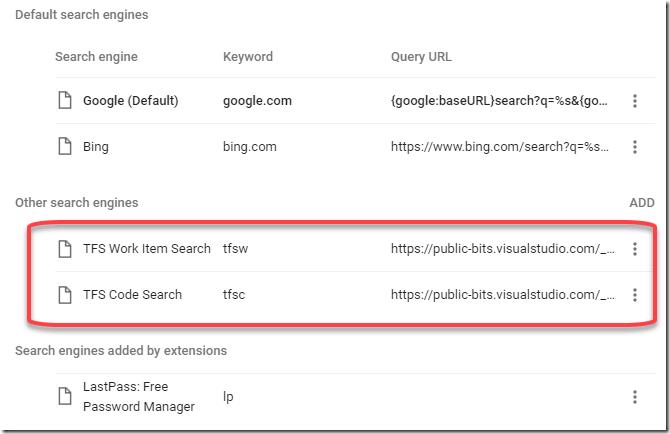
You should now have these 'search engines' in your list and you can use this in your browser
In the browser bar type tfsw and then space bar and search for something like test
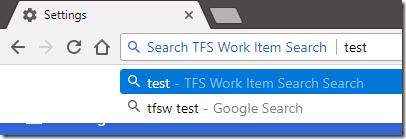
and press enter
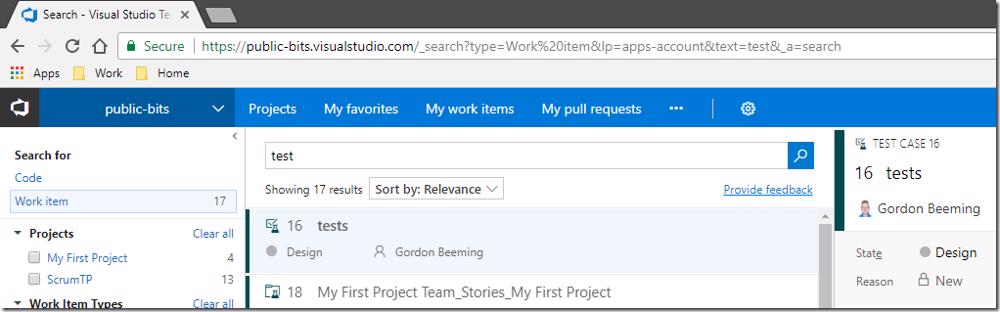
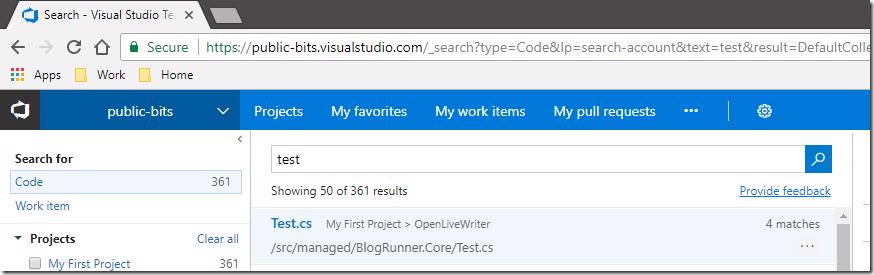
This will go ahead and perform a work item search on your account for the phrase that you typed in. Try the same thing with the tfsc shortcut
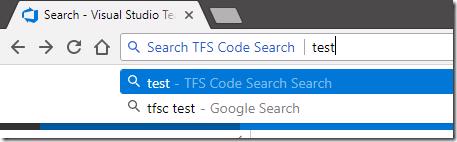
as you can see this then obviously searches your code 🙂
#Conclusion
Firstly you don't need to do those extra navigations to get to a page where you can search, it's super easy to just use what your browser has built in.
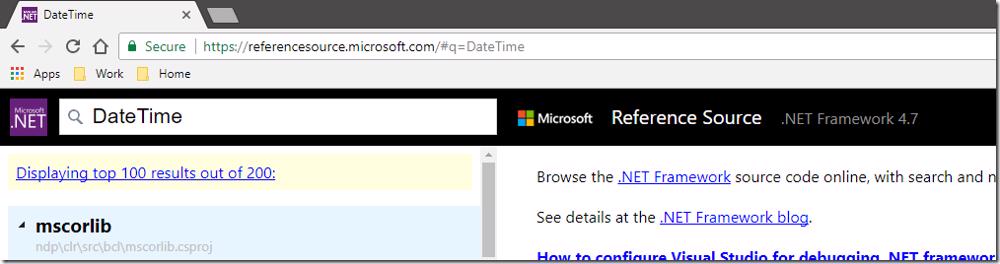
Secondly, chromes search engines functionality can be used for any site basically just take a url and replace the 'search term' part of the url with %s. For example in my list I generally have the .NET Framework Reference Source (https://referencesource.microsoft.com/#q=%s) to easily find .net source

which conveniently brings up
Cheers and have fun searching 😁