Using Application Insights with an existing Windows Store App

On this page6 sections ▾
If you haven't heard or read about Application Insights you should go to MSDN and read up on all the awesomeness that you can get by using this new feature of VSO. You can also take a look at the Channel 9 series on Application Insights for Visual Studio Online by Charles Sterling.
Also see Using Application Insights with a new Windows Store App for an example of adding Application Insights from the creation of a new project.
#Installing Application Insights from NuGet
To add Application Insights to your project install the Application Insights Telemetry SDK for Windows Store Apps (Id: Microsoft.ApplicationInsights.Telemetry.WindowsStore)
Install through the Manage NuGet Packages
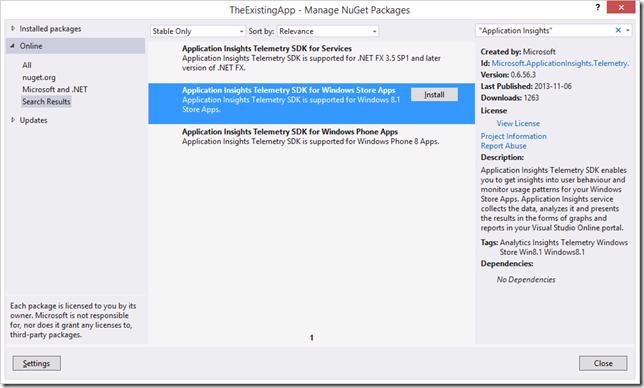
or using Package Manger Console
Install-Package Microsoft.ApplicationInsights.Telemetry.WindowsStore
The Application Insights NuGet package is now installed in your application
#Getting your instrumentation key
Navigate to a dashboard on VSO and click the admin/settings button in the top right and then click on Keys & Downloads, or browse to https://AccountName.visualstudio.com/_appanalytics/_admin/keysanddownloads. Select the application you are wanting to collect usage data for
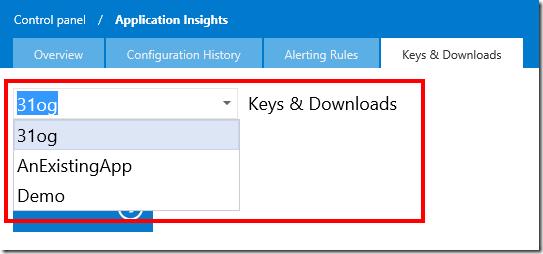
and then navigate down to the Windows 8.1 Store SDK section and you will see your instrumentation key
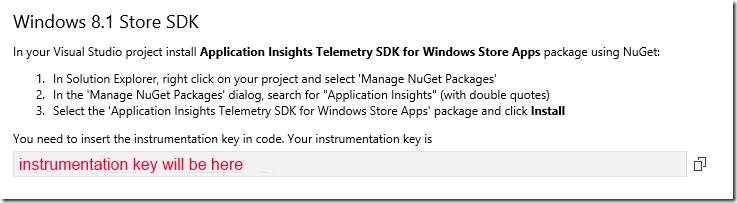
From here on it's the same as if you started with a clean application and opted to install Application Insights with the start of your application
#Changing App Configuration
All applications (at the moment) new or current will get the error below if you haven't already changed the Platform of your store application
![image_thumb\[12\]_thumb](/images/342a06c162f046c1828897ed3b50c905.png)
To get rid of this message and put Application Insights in a state where you can start logging application usage you will need to change the configuration of your app to not be Any CPU.
Open Configuration Manager
![image\[29\]_thumb](/images/ea8686d816404a75b18e2fc938ad41a5.png)
Set the platform to x86, x64, or ARM
![image_thumb\[2\]](/images/177fb2ec76ab425fbc355f56f1b0bd47.png)
#Initializing Application Insights
Open the App.xaml.cs file and at the end of the App() method add the following code
Microsoft.ApplicationInsights.Telemetry.WindowsStore.ClientAnalyticsSession.Default.Start("the instrumentation key from VSO");At this point you can run your application and you will get some basic information like the Operating System, Screen Resolution and a view metrics like session time. You'll need to wait about 15 minutes for the information to display on your dashboard but will look something like below.

To see the data head over to the Usage Tab on VSO Application Insights
![image_thumb\[7\]](/images/cf75a617ca2846d781f483d8ab0dcaec.png)
#Logging app feature usage
My existing application happens to be an empty Split Page application so I will just log which of the groups the user clicks into. To do this (if you are using the Split Page Application) navigate to ItemsPage.xaml.cs file and change the ItemView_ItemClick method to be like below
/// <summary>/// Invoked when an item is clicked./// </summary>/// <param name="sender">The GridView (or ListView when the application is snapped)/// displaying the item clicked.</param>/// <param name="e">Event data that describes the item clicked.</param>void ItemView_ItemClick(object sender, ItemClickEventArgs e){ var properties = new Dictionary<string, object>() {{"Title", ((SampleDataGroup)e.ClickedItem).Title}}; Microsoft.ApplicationInsights.Telemetry.WindowsStore.ClientAnalyticsChannel.Default.LogEvent("Store/ItemView", properties); // Navigate to the appropriate destination page, configuring the new page // by passing required information as a navigation parameter var groupId = ((SampleDataGroup)e.ClickedItem).UniqueId; this.Frame.Navigate(typeof(SplitPage), groupId);}We are simple logging that the Item Click event was fired and logging the title of the group that was clicked. This when you click around in the sample app will log to Application Insights as you click around and generate some data. To see the features that were logged head over to Event Insights under the Features tab
![image_thumb\[11\]](/images/817b8fa395fd48669c721dfca2db75d3.png)
#Conclusion
It's really simple to get started with Application Insights and get that feedback from your application when it's out there in the wild.