Application Insights for Windows Store Apps in Azure Portal

On this page2 sections ▾
If you've been using Application Insights for a while now you would have noticed that with recent Visual Updates the Application Insights SDK had been updated to use a new version that logs AI data into the new Azure Portal. From this if you use Windows Store Apps you would probably have noticed that if you instrument a Windows Store application with the new SDK that you can't actually find your data anywhere although you can see it being logged from the Visual Studio Output window and using Fiddler. The good news is that you will soon be able to have a great experience with the new AI SDK for Windows Store apps as you do for your currently for your web applications, the better news is that below you'll see how to use the new SDK for your Store Apps and see the data in the Azure Portal.
#Create a new AI Resource
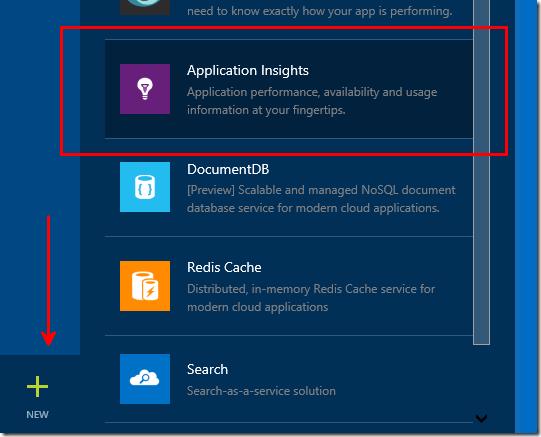
First off head over to the Azure Portal and create a new Application Insights Resource
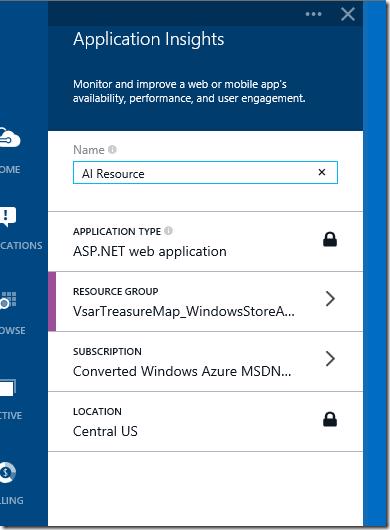
Give it a name and choose a Resource Group, It's fine that the Application Type is set to ASP.net web application.
After the resource has been created you are ready to add AI to your store app in visual studio
#Adding AI to your Windows Store App
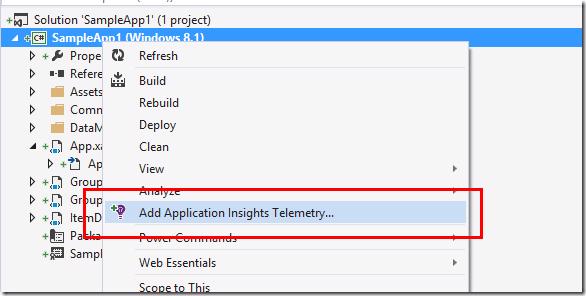
Open your store app in visual studio and make sure you have the latest AI SDK installed (2.4 at the moment) and no other AI artifacts left in your project. Right click on the store app solution and click on Add Application Insights Telemetry...
At this point if you haven't signed in you will be promoted to sign in, click Gain insights into your application now button
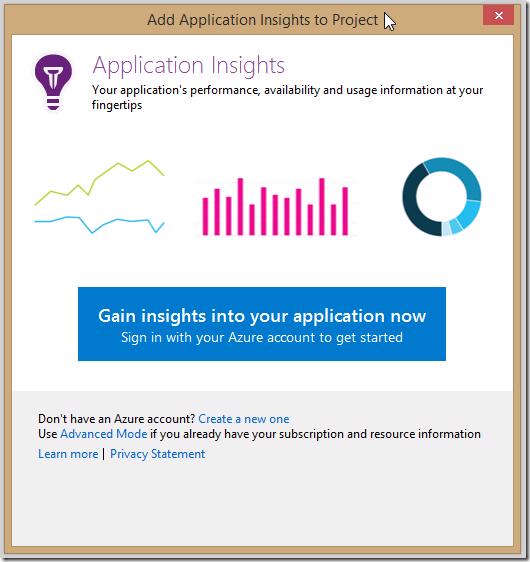
After you have signed in you will be presented with the Add Application Insights to Project window
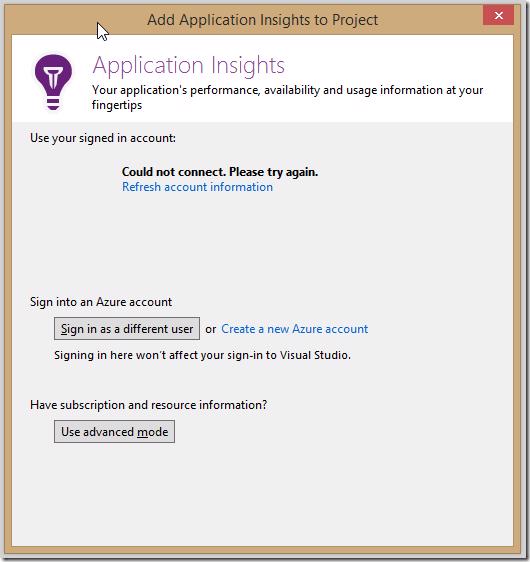
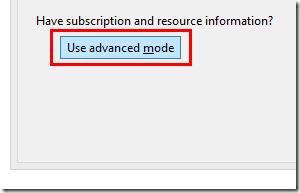
On this window click on Use advanced mode
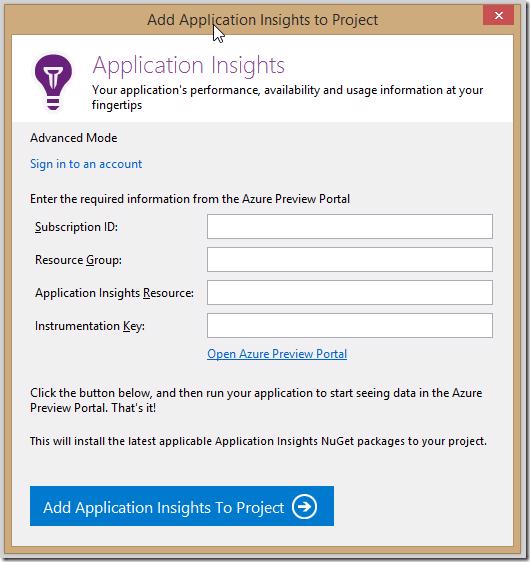
which will now ask you for all your AI settings
We'll get all of these from the portal. Open your AI resource in the portal and click on Properties
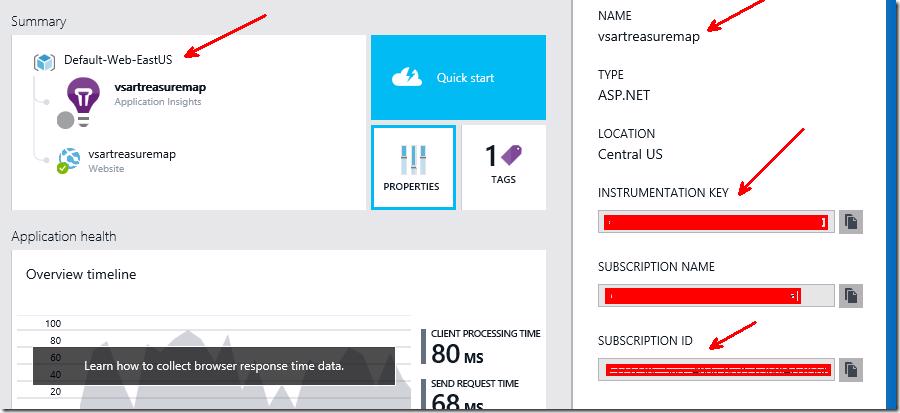
This will show you your Subscription ID, Resource Group, Application Insights Resource (name) and Instrumentation Key. Copy these and place them in the window. Once you have filled in all of those fields and clicked Add Application Insights To Project you are ready to run your app and see some data.
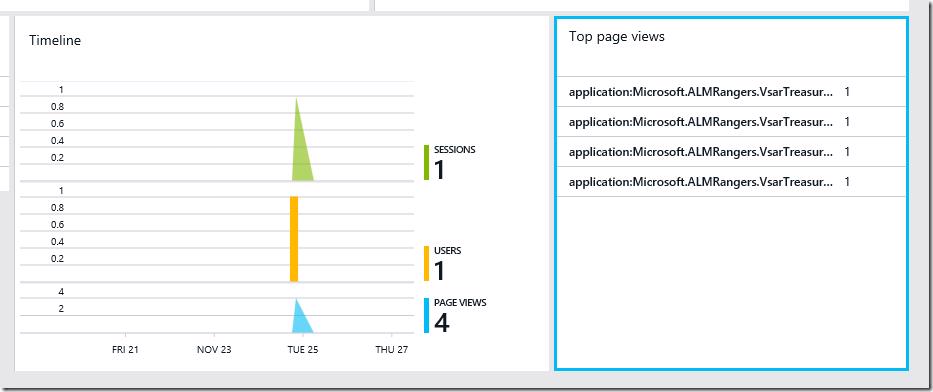
For now it's good enough to see what's happening in your app and some insight is infinity better than no insight =)