Moving Application Insights resources between subscriptions in Azure

On this page5 sections ▾
There is documentation available for Move resources to new resource group or subscription but things are easier to do with exact sample code so here it goes 🙂. The steps below will work for moving between Resource Groups as well, you'll just skip some steps that would be obvious.
#Limitations
There are a couple limitations which make sense like resources needing to be in the same directory and not every services is supported to move which is all detailed on the link mentioned above where all the limitations are documented.
#Step by Step
First off we need to login
Login-AzureRmAccountThen let's list all our subscriptions that we have access to
$Subscriptions = Get-AzureRmSubscription
$Subscriptions | Format-Table
You should see a result similar to the below

Now we need to set the source and destination subscription id from the list above and then check if the resource type is registered in the destination subscription
$SourceSubscriptionId = "<source sub id>"
$DestinationSubscriptionId = "<dest sub id>"
Once done we can check the resource providers to make sure the insights resource provider is enabled, usually this would not be enabled if you haven't created the resource in the destination subscription before. We'll first change the context to the subscription to our destination subscription id and then list the resource providers
Set-AzureRmContext -Subscription $DestinationSubscriptionId
$ResourceProviders = Get-AzureRmResourceProvider -ListAvailable
$ResourceProviders | Where-Object { $_.ProviderNamespace -eq 'microsoft.insights' } | Select-Object ProviderNamespace, RegistrationState
If like with me it's not registered
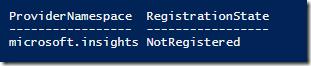
you can use the script below to enable the provider
Register-AzureRmResourceProvider -ProviderNamespace microsoft.insightsyou should see a message like below saying it's Registering

This takes a little while to run sometimes, you can run the last part of the script above every now and then to see when it's registered
$ResourceProviders = Get-AzureRmResourceProvider -ListAvailable
$ResourceProviders | Where-Object { $_.ProviderNamespace -eq 'microsoft.insights' } | Select-Object ProviderNamespace, RegistrationState
You should see it saying Registered as below when done

Before doing the switch we need to make sure we have a resource group in the target subscription to move the resource to, you can create a new resource group like below
New-AzureRmResourceGroup -Name "BeemingBlog" -Location "West Europe"We can now get our source resource Id and perform the move. For this we are going to switch context to the source subscription, find the resource we want, get it's resource id and then finally call Move-AzureRmResource to move the resource
Set-AzureRmContext -Subscription $SourceSubscriptionId
$SourceResource = Get-AzureRmResource -ResourceGroupName "BeemingBlog" -ResourceName "beemingblog"
$SourceResource
$ResourceId = $SourceResource | Where-Object { $_.ResourceType -eq "microsoft.insights/components" } | Select-Object -ExpandProperty ResourceId { $_ }
$ResourceId
Move-AzureRmResource -ResourceId $ResourceId -DestinationSubscriptionId $DestinationSubscriptionId -DestinationResourceGroupName "BeemingBlog" -Force
This would take a little while to complete usually, when done your resource should be in the subscription you want it in...if you there's a good chance you going to be creating a support ticket soon 😜. This is where you would leave off the subscription id if you are moving between resource groups instead of subscriptions
#last steps
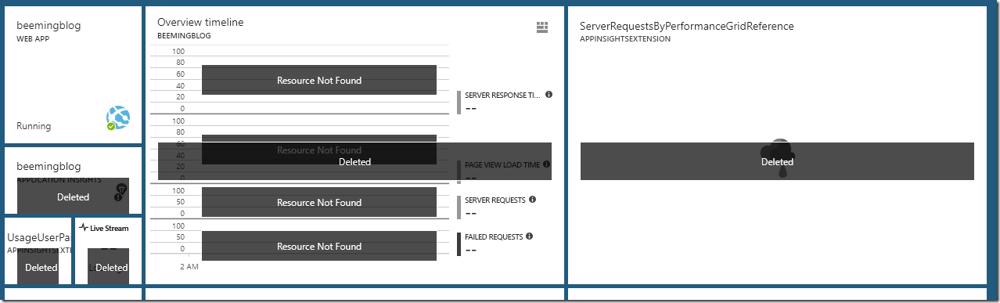
All that's left now is to go through any dashboards and existing scripts that reference this resource and update them. Because the resource is no longer at it's old location your dashboards will become less 'metricky' 🙂
#Full script
The full script for the above is below including some variables to make the replacements easier
# Set some variables that are going to be used later
$SourceResourceGroupName = "BeemingBlog"
$SourceResourceName = "beemingblog"
$DestinationResourceGroupName = "BeemingBlog"
$DestinationResourceGroupLocation = "West Europe"

#------------------------

# Login
Login-AzureRmAccount

# The source and destination subscriptions must exist within the same Azure Active Directory tenant
$Subscriptions = Get-AzureRmSubscription
$Subscriptions | Format-Table

# Set selected source and destination subscription ids
$SourceSubscriptionId = "b69cbba1-9087-4d8a-8e9f-861651ed3362"
$DestinationSubscriptionId = "3259386d-3d64-40f1-bad4-1a65f8daea4d"

# The service must enable the ability to move resources. This article lists which services
# enable moving resources and which services do not enable moving resources.
Set-AzureRmContext -Subscription $DestinationSubscriptionId
$ResourceProviders = Get-AzureRmResourceProvider -ListAvailable
$ResourceProviders | Where-Object { $_.ProviderNamespace -eq 'microsoft.insights' } | Select-Object ProviderNamespace, RegistrationState

# Register the provider
Register-AzureRmResourceProvider -ProviderNamespace microsoft.insights

# Create target resource group
New-AzureRmResourceGroup -Name $DestinationResourceGroupName -Location $DestinationResourceGroupLocation

# Get Source resource
Set-AzureRmContext -Subscription $SourceSubscriptionId
$SourceResource = Get-AzureRmResource -ResourceGroupName $SourceResourceGroupName -ResourceName $SourceResourceName
$SourceResource
$ResourceId = $SourceResource | Where-Object { $_.ResourceType -eq "microsoft.insights/components" } | Select-Object -ExpandProperty ResourceId { $_ }
$ResourceId
Move-AzureRmResource -ResourceId $ResourceId -DestinationSubscriptionId $DestinationSubscriptionId -DestinationResourceGroupName $DestinationResourceGroupName -Force#Conclusion
There is quite a lot of functionality that is available to us using the sdks like PowerShell that we can't do in the Azure Portal UI. Sometimes you just need to figure it out, in this case there was a good doc to follow.
Happy Migrating 😁